Tuesday, February 28, 2006

Self Underling Tags

It sure would be cool to create a tag that will do something that was so simple in AutoCAD… underline itself no matter how long it gets. Remember “%%u”? If you prefixed an attribute with it the resulting attribute’s underline would be only as long as the number of characters that made it up. Today I’m going to create a Pump Tag that is appropriately underlined whether it’s P-1 or P-2000.

There are 3 important parts involved in making this happen.
1. The Tag
2. The Property that the tag calls
3. The Property Data Format

The Tag
My tag has 2 parts, a static part “P-“ that will never change, and it will also call a property from a property set which is constantly up for change. The underline must span both parts.

To make my tag, I will just place 2 pieces of text in a drawing (“%%uP- “ and “XXX”) as I want to see them for a tag. Notice I added a space after the dash. This is necessary for the underlining of my two parts to overlap. The result should look something like this.

P-XXX

The Property that the tag calls

So much for the first part. Now I need a property to call. I made a Property Set called Pumps in the Style manager, and added a property called “Pump_Number”. If you look at the available formats for this property, Underlined is not available.


The Property Data Format

We are going to have to make a format called Underlined ourselves. In the Style manager, drill to Property Data Formats under Documentation objects, and create a new format. Name it underlined. In the Formatting tab add “%%u” to the Prefix: box. See figure 2.


Now go back to the Pumps Property Set Definition. There we can select the newly made format of underlined.

The two underlines will slightly overlap, but are perfectly aligned so the plots will never show it. When you add or change your pump number, the “%%u” shows until you activate the field to edit it. This is great because users can not accidentally delete it.

Saturday, February 18, 2006

Add or Modify Duct Sizes

So, I have this client that does a lot of hospital work and they ran into something I had not noticed before. When adding rectangular duct they informed me that they could not insert duct larger than 96”x96”.


Some jobs are so large, they require larger duct. They were glad to know there is a way to create larger sizes, and I thought there might be others that could benefit from knowing how to add to the available duct sizes.

Ducts are constrained by the catalog in which they are defined. These catalogs can be altered by using the Catalog Editor. Invoke the Catalog Editor by selecting it from under the MEP Common pulldown menu.


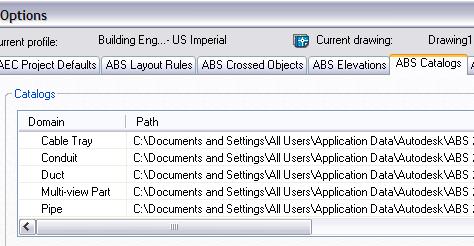
Before opening the Catalog Editor, check the ABS Catalogs tab in Options to find the duct catalog you are using. Mine is buried in C:\Documents and Settings\All Users\Application Data\Autodesk\ABS 2006\enu\Aecb Catalogs\ Duct US Imperial.apc


Once opened, drill down to Duct US Imperial\Rectangular\Slip Joint\Ducts\Rectangular Duct Slip Joint\Constant Lists.


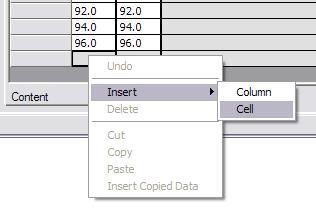
To add additional heights and widths, scroll to the bottom of the list and right click on the gray square under the last available size. Select “Insert” and then “Cell”. Now type in your new height or width.


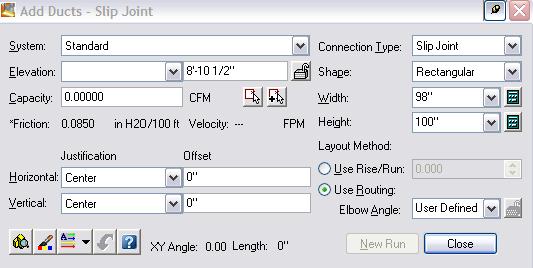
I added 98 and 100 to both columns in this example. Save and close the Catalog Editor. Now return to the MEP Common pull down and select “Regenerate Catalog”. Type “D” on the command line to regenerate the Duct catalog. Now when you select the Add Duct tool the new sizes are available.


Keep in mind, we have only added duct sizes. To effectively add duct you will have to repeat this process to add the appropriate elbows and transition sizes.
This is a good place to begin if you are ready to start exploring the Catalog Editor, but please be careful and back up what you don’t want destroyed. Too much exploring and playing around could back fire here with catastrophic results. Till next time, Good Luck.