Kelly Swa has recently Started his own ABS - Revit Systems Blog. Check it out here.
Bucking the Systems
Now, the really cool thing is that Kelly is teaching an online AUGI class on parametric parts this August. I highly suggest you sign up for this one, because I can't think of something more complex to learn on your own.
The same link below will allow you to sign up for my class in September on creating block-based parts. It will be a spin of what I taught at AU last year with a lot more detail and different parts added.
AUGI Training Program (ATP)
It's all free thanks to the fine folks at AUGI. If you are not a member this should be more than reason enough to join up.
Good luck, and I hope to see you in class.
Tuesday, May 30, 2006

Monday, May 29, 2006
ABS Electrical Device Style and Tags
Last December I posted an article on how to create electrical device styles. Quite often these styles will have tags that need to rotate with the device. Let's say I have a pull station that is represented by a circle with the letter "F" in it.

I got a call from a user that had created some styles like this that seemed to work great until they rotate the style. Upon rotation the tag would begin to spin away from the original object reaching its farthest distance at 180 degrees and returning to the object back at 0 degrees.
They were perplexed and so was I until I discovered that the justification of the created tags play an important role in their behavior. If you need a tag to rotate in a single spot, its justification must be Middle Center. Otherwise it will have a different base point of rotation from your object. I hopes this help anyone that might be creating Device styles.
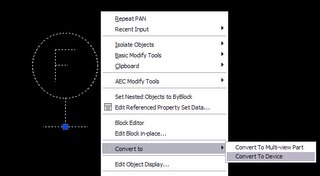
Something else that might help is a new way of creating Electrical device styles in ABS 2007. Simply select an AutoCAD block, right click and select "Convert to" then "Convert to Device".
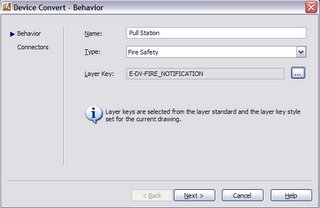
This will open a dialog box to assign a Name, type of device and layer key to the new style.
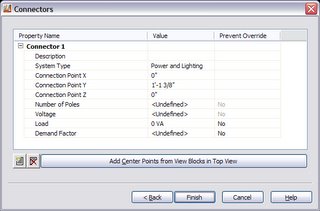
Click next to assign any connector properties, then click "Finish" to complete.
If ABS detects any other blocks with the same name in the current drawing, it will ask you if you want to convert them all. That is pretty much the whole thing.
Coming soon the run down on batch converting your AutoCAD blocks to device styles.

I got a call from a user that had created some styles like this that seemed to work great until they rotate the style. Upon rotation the tag would begin to spin away from the original object reaching its farthest distance at 180 degrees and returning to the object back at 0 degrees.
They were perplexed and so was I until I discovered that the justification of the created tags play an important role in their behavior. If you need a tag to rotate in a single spot, its justification must be Middle Center. Otherwise it will have a different base point of rotation from your object. I hopes this help anyone that might be creating Device styles.
Something else that might help is a new way of creating Electrical device styles in ABS 2007. Simply select an AutoCAD block, right click and select "Convert to" then "Convert to Device".

This will open a dialog box to assign a Name, type of device and layer key to the new style.

Click next to assign any connector properties, then click "Finish" to complete.

If ABS detects any other blocks with the same name in the current drawing, it will ask you if you want to convert them all. That is pretty much the whole thing.
Coming soon the run down on batch converting your AutoCAD blocks to device styles.
Monday, May 15, 2006
New Carrier HVAC software imports gbXML
ABS has had the ability to hold and modify engineering data in space objects since 2005. The ABS interface greatly improves your ability to design, zone and control spaces in a building as opposed to manually typing this information into your HVAC calulation software. The magic takes the form of a gbXML file that holds the design data. It can be exported from ABS (and Revit Systems) and imported into some HVAC software.
That software supporting a gbXML import has been;
Trane Trace 700 and VariTrane Duct Designer software
Elite DuctSize software
Green Building Studio
Now, Carrier has just released HAP 4.3. It now supports gbXML import. Follow this link for the details.
http://search.atomz.com/search/?sp-q=gbxml&sp-k=Commercial+Systems&sp-a=sp09127501&sp-f=ISO-8859-1
No doubt this will be good news for Carrier users that were contemplating a switch to ABS.
As an added bonus, ABS and ADT now share a common space object, meaning doors and windows come directly over from the architect and engineering design data can be added once in ABS without the loss of architectural openings. More to follow on that subject.
That software supporting a gbXML import has been;
Trane Trace 700 and VariTrane Duct Designer software
Elite DuctSize software
Green Building Studio
Now, Carrier has just released HAP 4.3. It now supports gbXML import. Follow this link for the details.
http://search.atomz.com/search/?sp-q=gbxml&sp-k=Commercial+Systems&sp-a=sp09127501&sp-f=ISO-8859-1
No doubt this will be good news for Carrier users that were contemplating a switch to ABS.
As an added bonus, ABS and ADT now share a common space object, meaning doors and windows come directly over from the architect and engineering design data can be added once in ABS without the loss of architectural openings. More to follow on that subject.
Sunday, May 14, 2006
Revit Systems and ABS - a Comparison of Features
I have been getting a lot of feed back regarding Revit Systems and ABS, so it's safe to say I will be discussing them both at length for the foreseeable future.
Today's post is simply a look at how they compare by major features. As you review them, you may notice the features in Revit Systems go deeper into the actual engineering of a building than ABS ever has. Next time I will be discussing why this is important as you look at your companies long range plans and procedures.
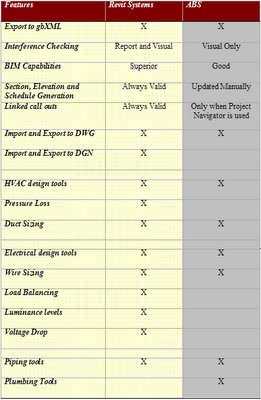
If you are having trouble reading the features list, right click on the list and select "Open Link". Once you see only the link, select the features list and click on the "Enlarge to normal size" button that appears in the lower right hand corner of the features list.
Today's post is simply a look at how they compare by major features. As you review them, you may notice the features in Revit Systems go deeper into the actual engineering of a building than ABS ever has. Next time I will be discussing why this is important as you look at your companies long range plans and procedures.

If you are having trouble reading the features list, right click on the list and select "Open Link". Once you see only the link, select the features list and click on the "Enlarge to normal size" button that appears in the lower right hand corner of the features list.
Subscribe to:
Posts (Atom)