If you follow the Revit Systems discussion group at all, you know Kyle B. has always been there with an insightful answer or an even better quick video. Today Kyle announced he is taking over as the Revit System Product Manager. See his post here. Here's wishing you the best best Kyle.
I'm hoping to see the product fully develop in a matter of days now... so ah , no pressure.
Wednesday, January 24, 2007

Tuesday, January 23, 2007
Knowing What You Don't Know About CAD
I found a great Blog today that I Love. Yes, it's love, but don't worry Mike Massey has plenty of love to go around. Mike has a content rich site that embraces change and real world issues. Do your self a favor and check out Mike Massey's Blog Knowing What You Don't Know About CAD.
Monday, January 22, 2007
Dynamic Blocks inside of ABS - Visibility Solution
For all the awesome tools inside of ABS and ADT one of my favorite tools comes from AutoCAD. The Dynamic block just happens to fit the bill for some special situations. Electrically, I like to use a dynamic block for exit arrows on my exit signage. I could create separate device styles for every possible situation, but I find have one device style with a dynamic block on top is more efficient. The dynamic block I document below, uses Visibility States and Rotation parameters to handle the many different situations you might run into.
Now, this gets me to the real reason I'm writing this article. Visibility states that work great in AutoCAD, do not respond so well inside of ABS and ADT. Here's what happens, the triangle icon used to select the desired state simply issues the previous command like hitting "enter" or "spacebar". One work around is to use the properties palette to choose the required state. I feel like it's too much effort, but I'm Lazy. I have heard that changing your right click settings in Options can correct the problem, but it has not worked for me. What I have done, is insert the few Dynamic blocks I use into the company ABS template. I do this because once a drawing is saved and re-opened, the problem ceases to exist. So by placing the Dynamic blocks I use in the template, they are in effect already saved and reopened from the get go.
Okay, I promised the down low on a Dynamic block so here we go. This block uses visibility states to cover the many different configurations of exit sign arrows. I'm going to draw the entire thing inside of the Block Editor, but if you already have blocks, just insert them into the Block Editor.
I'll either have a double arrow or a single arrow, then either a single sided or double sided device. For this block, I will create a base point that will correspond to the center point of any exit sign. With the point defined, I'll create all the symbology I need for all the arrows See the figure below.
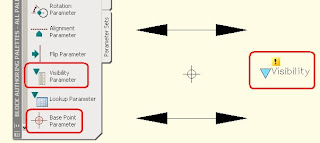
Next select the Visibility parameter from the Author Palette or use the Parameter button shown above.
Once placed, the visibility configuration tools become available. The buttons available are (R to L)Visibility Mode which will show invisible items half toned, Make Visible, which will make invisible objects in the current visibility state visible, Make Invisible, which will make visible objects in the current visibility state invisible, and Manage Visibility States, which opens the Visibility States dialog shown below.
Now its time to give a little consideration to the names of your states. This is what the user will see when they select the visibility icon.
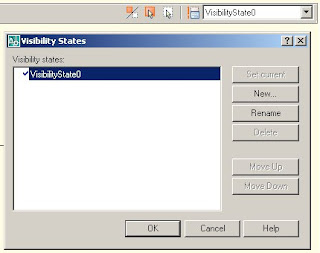 Use the "Rename" button found in the "Visibility States" dialog to rename the default state to "1 Left" (See below). This is the name for a single arrow pointing to the left. Now use the "new" button to add three more states; 2 Left, for two faced signs, 1 Right and 2 Right. Depending on the visibility options you had set when creating your states, use the Make Visible or Make Invisible buttons so the appropriate geometry is visible in each state. I use the Visibility Mode button at this time so I can view all of the geometry whether visible or not.
Now, this gets me to the real reason I'm writing this article. Visibility states that work great in AutoCAD, do not respond so well inside of ABS and ADT. Here's what happens, the triangle icon used to select the desired state simply issues the previous command like hitting "enter" or "spacebar". One work around is to use the properties palette to choose the required state. I feel like it's too much effort, but I'm Lazy. I have heard that changing your right click settings in Options can correct the problem, but it has not worked for me. What I have done, is insert the few Dynamic blocks I use into the company ABS template. I do this because once a drawing is saved and re-opened, the problem ceases to exist. So by placing the Dynamic blocks I use in the template, they are in effect already saved and reopened from the get go.
Okay, I promised the down low on a Dynamic block so here we go. This block uses visibility states to cover the many different configurations of exit sign arrows. I'm going to draw the entire thing inside of the Block Editor, but if you already have blocks, just insert them into the Block Editor.
I'll either have a double arrow or a single arrow, then either a single sided or double sided device. For this block, I will create a base point that will correspond to the center point of any exit sign. With the point defined, I'll create all the symbology I need for all the arrows See the figure below.

Next select the Visibility parameter from the Author Palette or use the Parameter button shown above.
Once placed, the visibility configuration tools become available. The buttons available are (R to L)Visibility Mode which will show invisible items half toned, Make Visible, which will make invisible objects in the current visibility state visible, Make Invisible, which will make visible objects in the current visibility state invisible, and Manage Visibility States, which opens the Visibility States dialog shown below.
Now its time to give a little consideration to the names of your states. This is what the user will see when they select the visibility icon.
 Use the "Rename" button found in the "Visibility States" dialog to rename the default state to "1 Left" (See below). This is the name for a single arrow pointing to the left. Now use the "new" button to add three more states; 2 Left, for two faced signs, 1 Right and 2 Right. Depending on the visibility options you had set when creating your states, use the Make Visible or Make Invisible buttons so the appropriate geometry is visible in each state. I use the Visibility Mode button at this time so I can view all of the geometry whether visible or not.
 Next, let's add a Rotation Parameter. Begin at the base point and extend to the right. An angle of zero is fine for our use here. In the Actions tab of the Author palette select the Rotation Action. Choose the Rotation parameter to attach it to. For objects, insure you pick not only all of the visible or not geometry, but also the parameters and actions. This will make them available in every state. Close the block Editor and test your new dynamic block. It should look something like this.

For more ideas for Dynamic blocks, see my Lazy Drafter article "Thinking Outside the Block".
Wednesday, January 10, 2007
Want to Crash Revit?
Google Sketch Up 6 is out now. I just down loaded it for my kids. They think it's play-dough for your computer, and I reckon it's about that easy and fun. A weird thing happened when I tried to to bring a Sketch up 6 file into Revit Building 9, it crashed with extreme prejudice. I had to write about it because crashing Revit is so hard, when you finally find something that will crash it consistently, it was almost fun.
To avoid crashes for now save down to Version 5 before importing into your Revit Project.
To avoid crashes for now save down to Version 5 before importing into your Revit Project.
Tuesday, January 09, 2007
Making Revit Systems Work
The question I always seem to come back to is this, What is it going to take to get Revit Systems working for me? If you seem to be asking the same thing, I'll share some advice. It has everything to do with your expectations. This might not help if you don't know what to expect. Here is some food for thought.
BIM
If you are wanting to switch to Revit Systems because you are feeling pressure to complete a BIM model, Keep in mind, nobody can agree to what the Hell a BIM model is. Seems like every one is working on it, but it is plain undefined.
That being said, someday we will know, and someday our contract documents will reflect the legalities of BIM. When that happens, my money is on Revit to deliver. Sticking your toe in the Revit waters now will acclimate you now so you are ready to jump when it's time.
My Architects are using Revit Building
This is a good reason to have Revit Systems, not necessarily a good reason to use Revit Systems. Having it means, I'm capable of translating Revit files myself both from and to the architect. The important thing to keep in mind for collaborating with your architectural clients is communicating what they can expect of you and developing new procedures in house to deal with a single Revit project file instead of multiple DWGs or DGNs. At this stage delivering HVAC and electrical content in model form for interference detection is a real bonus and a valid expectation. In the end producing coordinated CDs spending more time on design and less on drafting is the real benefit to MEP firms. Marketing that you have or use Revit Systems can get you in trouble if your client believe you have or can do something you can't (plumbing).
How Fast Can I get up to Speed?
I like the analogy of Revit products are like ipods. AutoCAD is record albums and ABS is CDs. There are people who love albums and will never stop. Transitioning to CDs is relatively easy for the user, they are just tiny digital albums. Transitioning to an ipod however is completely different. I think ipods sales would suggest that this is the way of the future, but I still read all about people still trying to figure out how to use the darn things. Once you do, you tend to love them.
If you want to get up to speed, understand it will be different for every firm, but here are the basics.
Find out what you don't know. Take a class, contact your reseller, research, do what ever it takes and allow your self time to understand what you are getting into. You will want to know what the software is capable of and what it can not do.
Plan. Decide what makes sense for your company. Just because the software may do something, your firm may not need to use that function. (Scheduling, Phasing...). Now plan out the purchases (Hardware and Software), the required content creation. Your firm will undoubtedly require objects not supplied with Revit Systems the same way AutoCAD did not come with Blocks or Layers, you will have to make them or pay a consultant to help you. Currently you probably need hundreds of families created and you may have no idea how Revit plots.
Educate. Your design team needs to learn how to function in the Revit interface. Not how to create templates and families, how to model and create construction documents.
Test. Validate what you have done on a small project. Something you do enough on that you can bail if you need to. Something you are comfortable quantifying. This will help you decide if Revit is faster, better, stronger.
Practice. I bet things are not all that faster or better on the first project, but as you continue to produce in Revit (tweaking as you go) Things will improve.
I Want to do what I'm doing now, only BETTER.In the end, this is the best and only reason to move toward Revit Systems for me. Yes, my clients use it, I heard the buzz about BIM, It's really cool according to my CAD guys... all things to consider, but oddly just wanting to improve your design process is what will really count in the end.
BIM
If you are wanting to switch to Revit Systems because you are feeling pressure to complete a BIM model, Keep in mind, nobody can agree to what the Hell a BIM model is. Seems like every one is working on it, but it is plain undefined.
That being said, someday we will know, and someday our contract documents will reflect the legalities of BIM. When that happens, my money is on Revit to deliver. Sticking your toe in the Revit waters now will acclimate you now so you are ready to jump when it's time.
My Architects are using Revit Building
This is a good reason to have Revit Systems, not necessarily a good reason to use Revit Systems. Having it means, I'm capable of translating Revit files myself both from and to the architect. The important thing to keep in mind for collaborating with your architectural clients is communicating what they can expect of you and developing new procedures in house to deal with a single Revit project file instead of multiple DWGs or DGNs. At this stage delivering HVAC and electrical content in model form for interference detection is a real bonus and a valid expectation. In the end producing coordinated CDs spending more time on design and less on drafting is the real benefit to MEP firms. Marketing that you have or use Revit Systems can get you in trouble if your client believe you have or can do something you can't (plumbing).
How Fast Can I get up to Speed?
I like the analogy of Revit products are like ipods. AutoCAD is record albums and ABS is CDs. There are people who love albums and will never stop. Transitioning to CDs is relatively easy for the user, they are just tiny digital albums. Transitioning to an ipod however is completely different. I think ipods sales would suggest that this is the way of the future, but I still read all about people still trying to figure out how to use the darn things. Once you do, you tend to love them.
If you want to get up to speed, understand it will be different for every firm, but here are the basics.
Find out what you don't know. Take a class, contact your reseller, research, do what ever it takes and allow your self time to understand what you are getting into. You will want to know what the software is capable of and what it can not do.
Plan. Decide what makes sense for your company. Just because the software may do something, your firm may not need to use that function. (Scheduling, Phasing...). Now plan out the purchases (Hardware and Software), the required content creation. Your firm will undoubtedly require objects not supplied with Revit Systems the same way AutoCAD did not come with Blocks or Layers, you will have to make them or pay a consultant to help you. Currently you probably need hundreds of families created and you may have no idea how Revit plots.
Educate. Your design team needs to learn how to function in the Revit interface. Not how to create templates and families, how to model and create construction documents.
Test. Validate what you have done on a small project. Something you do enough on that you can bail if you need to. Something you are comfortable quantifying. This will help you decide if Revit is faster, better, stronger.
Practice. I bet things are not all that faster or better on the first project, but as you continue to produce in Revit (tweaking as you go) Things will improve.
I Want to do what I'm doing now, only BETTER.In the end, this is the best and only reason to move toward Revit Systems for me. Yes, my clients use it, I heard the buzz about BIM, It's really cool according to my CAD guys... all things to consider, but oddly just wanting to improve your design process is what will really count in the end.
Subscribe to:
Posts (Atom)