Tuesday, January 22, 2008

Special Characters in Revit MEP

It's probably safe to say that most people converting to Revit MEP came from an AutoCAD background. Inevitibly, you will wonder, "How do I do this in Revit?" Here's one I had.

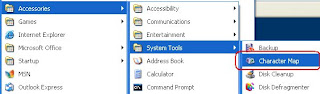
AutoCAD has allowed the use of special text characters like Ø and ± since.. well back when I owned a comb. This comes from the use of SHX files, which Revit does not use. So here's what you need to do. Every font has some sort of special charaters and they can all be different. For this example I will use Arial since that is what's used out of the box with Revit MEP. The special characters can be viewed by opening the character map for the font you use. Access it by clicking on the Start button and selecting All Programs -> Accesories -> System Tools -> Character Map. (See Below)
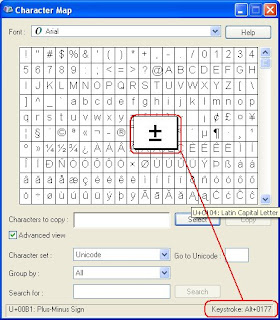
Here is screen shot of the Character Map for Arial. Once you click on a character you want you can copy and paste it to a Revit Text box or better yet check out the bottom left-hand corner of the dialog box. You may find the keystroke equivalent to the character. In my example I can insert the plus or minus symbol by holding down the Alt key and typing the number 0177.
If you are just starting a conversion to Revit MEP, give some serious thought to the font you want to use and ensure that it has at least the majority of the special characters you may need. Any other characters can be saved as an annotation symbol, which I will have to discuss at another time.

Wednesday, January 16, 2008

Revit MEP Family Tutorial

Anybody wanting to implement Revit MEP seems to know that content creation is a must. What you may not know is that Autodesk has posted a real good introduction to making MEP families. Not doors and windows but actual mechanical and Electrical components. Go to Autodesk's Revit MEP Documentation webpage then make sure to scroll to the bottom of the page, where you will see this.

Down load today and get busy making your own family.

Thursday, January 10, 2008

Recover All

You may have noticed that AutoCAD 2008 came with a great function to recover a drawing file and also recover any files that it referenced. It is found under the File\Drawing Utilities menu.
This tool will recover a drawing and all of it's Xrefs then provide you with a report! It maintains the original file's format, Saves the original as a *.BAK, and updates custom objects if an object enabler is present.
The sad thing is that it is not there in AutoCAD MEP. The cool thing is the command line version is there. Type "Recoverall" to invoke the tool and fix those messed up background you keep getting from your clients.

Thursday, January 03, 2008

Iowa Caucus... Check out my poll

It's the end of 2008, so my poll on what software you are using is closed. Here are the final results.

Now let's turn our attention to something everyone seems to be talking about, yet I honestly don't see any in action. If you are using BIM, let us know. Just to Clarify, BIM is not Revit. BIM is a process by which Building information is modeled and shared. Easily done with AutoCAD MEP (ABS and ADT) and other software. I like to keep the polls open for a while, but I also like to see some numbers up there, so vote early and often.

See the side bar to Rock the Vote!