Thursday, December 24, 2009

Add Structural Steel with Revit MEP

Not all Revit is equal. You know this if you have tried adding a ceiling grid with Revit Structure, duct with Revit Architecture, or structural steel with Revit MEP. You can load the families, but try and create an instance and you will get an error telling you "Can't create this kind of element in this view in the current mode".

This week I needed to create some structure from the structural engineers AutoCAD plans since they were not using Revit. The way I got around the above mentioned error was to open a structural model I received from a different engineer on a different job. I copied one structural beam to the clipboard and pasted it into the job where I needed beams. It shows up fine in my drawing and I can change its length, offset and location. I can then change its size with the type selector. I had all the beam sizes because I down loaded the Core Structural Library from Autodesk.

For what I needed, this worked out pretty well.

Merry Christmas everyone.

Thursday, December 17, 2009

Disrectful Column Lines

Problem; You have created an enlarged view in Revit MEP and the linked architectural column lines shoot off into outer space instead of respecting the new smaller crop region.

Analysis; This is probably due to the architect locking down the column lines for use on thier plans.

Solution; In the linked file select the offending column line and right click on it. If it is available select "Reset to Crop", if not select "Reset to 3D Extents". Chances are, your problem is solved.
To test it, move the crop region and see if the column bubbles follow.

Monday, December 07, 2009

Adding Parameters and Custom Tags to MEP Families

These days more and more Revit MEP content is available but, the families you find either out of the box or on the Internet will probably not have every parameters that you need. This example will demonstrate how to add a parameter to a family and then how to create a custom tag for the added parameter.

There is a file called the Shared Parameter list. This file is used to store parameters that are scheduled. To access the Shared Parameter list select it from the Manage tab of the ribbon.
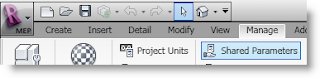
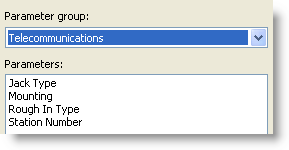
The parameters in this file can be grouped by discipline or other desired heading. I created a
telecommunications group and added four parameters under it. Below I will show how to add these parameters to the default data outlet in Revit MEP 2010.
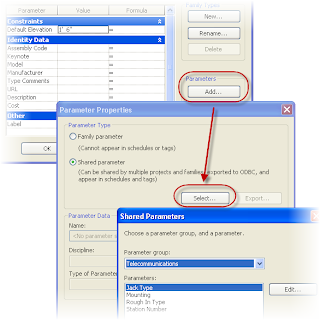
Open the default data outlet in Revit MEP 2010. To add the needed parameters from the shared parameter file, click the Types tool at the end of the Manage tab of the ribbon, then select the Add button shown below to open the Parameters Properties dialog. In this dialog change the parameter type to Shared parameter and click the Select button. Now you can select the group and parameters to add to the family.
To create a new tag select New then Annotation Familiy from the Application browser then pick the Data Device Tag template. Next select the Label tool and click at the intersection of the two reference planes.
This will bring up the Edit Label dialog. Use the Add Parameter button shown below to add the
four parameters created from the shared parameters list one at a time. Load these two files into a project to test them out. Since I do not use all four parameters every time. I add a comma before each of the parameters after the first one for a separator (see below).
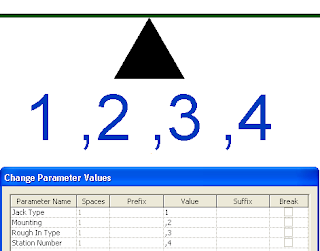
Easy as pie and its schedulable. Not sure if schedulable is a word, but you get it.
Thursday, December 03, 2009

Going Live at AU 2009

I'm getting ready to go live with my last presentation here at AU which will happen in 6 hours. I have got to reconnect with some good friends David Butts, Beau Turner, Joe Eichenseer, and Abbie Meador among others. It seems we have had a smaller turn out due to economics but the level of intensity remains the same. There is no better place to be to take your skills to the next level than Autodesk University. Looking forward to getting this done and returning to reality soon. Expect to see some posts on what I learned this week.